Sales Commission – Participant Dashboard Procedures
Note: This is a sample procedure document provided for client review and demonstration purposes only. Actual system behavior, terminology, and navigation flow may vary based on implementation. All hyperlinks in this document are illustrative and may not be operational.
This guide provides step-by-step procedures for using the Participant Dashboard in Jeenbake’s Sales Commission system. A Participant can be either a sales representative or a manager, each assigned one or more Positions that determine their role within the compensation program.
The dashboard interface and available features differ based on the participant's role:
- Sales Representatives can view their individual earnings, performance metrics, and related documents.
- Managers can view both their own data and dashboards of their subordinate participants.
This page covers procedures for viewing dashboards, accessing messages and reports, accepting documents, raising disputes, and managing account settings.
URL: https://commissions.jeenbake.com
Username: Domain Username
Password: Domain Password
Procedures
Accessing the Dashboard
Participants in the Jeenbake Sales Commission system—whether Sales Representatives or Managers—access dashboards tailored to their role. The type of dashboard view available depends on the participant's assigned position. This section outlines both the available dashboard views and the step-by-step process to access them.
Dashboard Views
In the dashboard, there are two types of views based on the participant's role. Sales representatives typically have one view, while managers have access to multiple dashboard options.
| View Name | Description | Applies To |
|---|---|---|
| DASH_DG_SDM | This view is for Participants. | Sales Development Manager (SDM) |
| DASH_DG_RSM_RSD | This view is for Participants. | Regional Sales Manager (RSM), Regional Sales Director (RSD) |
| DASH_RSM_RSD_MGR | This view is for Managers to view subordinate dashboards. | Regional Sales Manager (RSM), Regional Sales Director (RSD) |
The procedure to view the dashboard as a Participant or Manager is described below.
Viewing the Dashboard
-
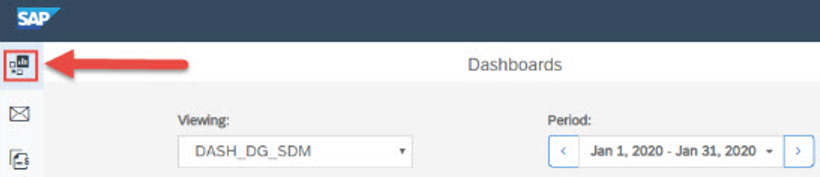
Click the Dashboard icon.
-
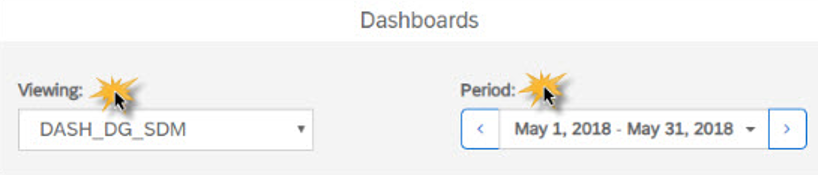
From the Viewing drop-down list, select the dashboard.
- To view dashboard as a participant:
- For SDM, select DASH_DG_SDM
- For RSM or RSD, select DASH_DG_RSM_RSD
- Then select the Period
- To view dashboard as a participant:
-
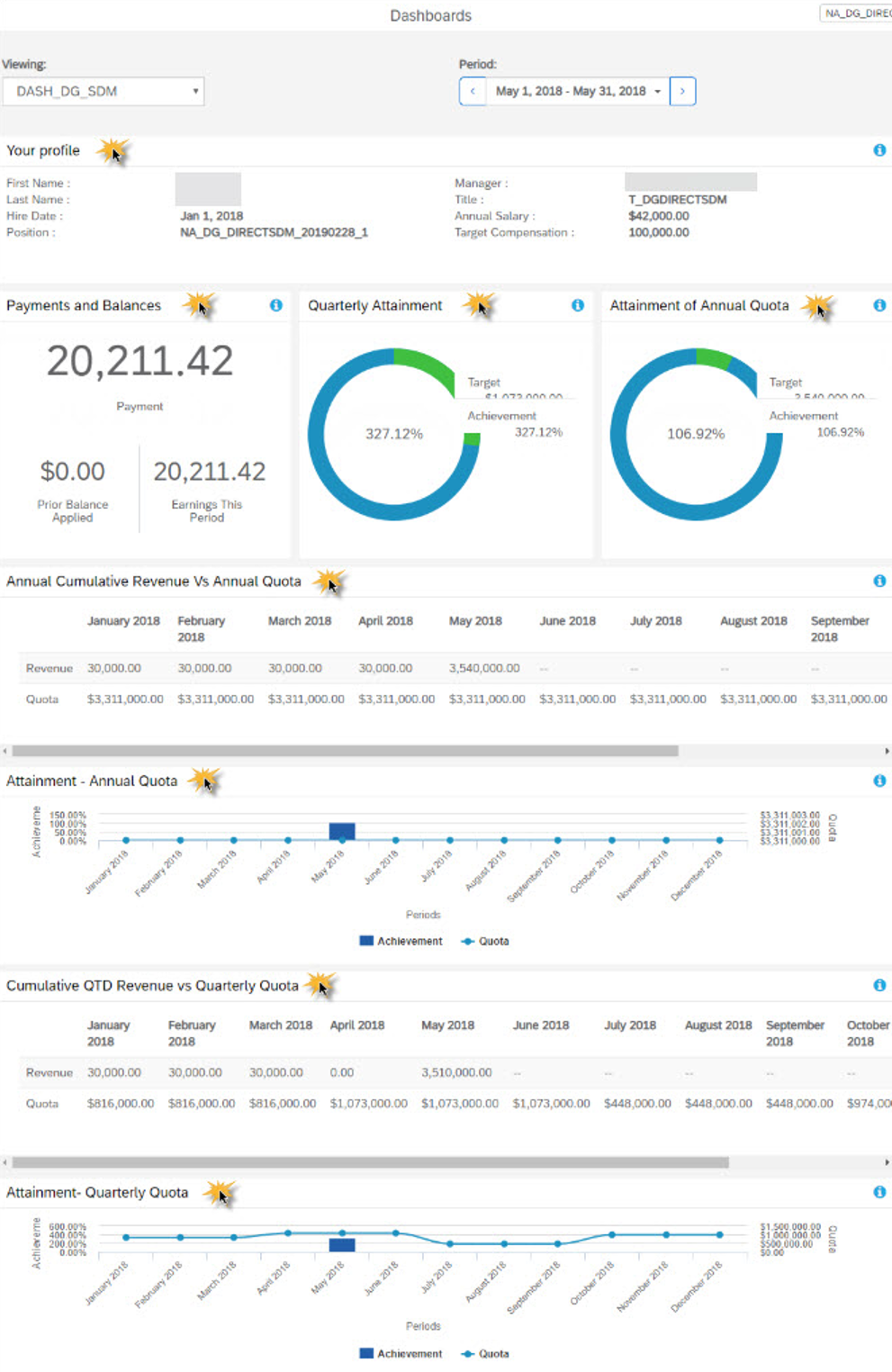
The dashboard displays your profile and statistical information:
- Your Profile
- Payments and Balances
- Quarterly Attainment
- Attainment - Annual Quota
- Cumulative QTD Revenue vs Quarterly Quota
- Attainment - Quarterly Quota
Viewing Messages
This section is included as part of the sample structure and layout for procedure documentation.
Viewing Reports
This section is included as part of the sample structure and layout for procedure documentation.
Viewing and Accepting Documents
This section is included as part of the sample structure and layout for procedure documentation.
Creating New Disputes
This section is included as part of the sample structure and layout for procedure documentation.
Setting Accounts
This section is included as part of the sample structure and layout for procedure documentation.